

12 Free Roblox Package Override Studio Beta Tools - 2026
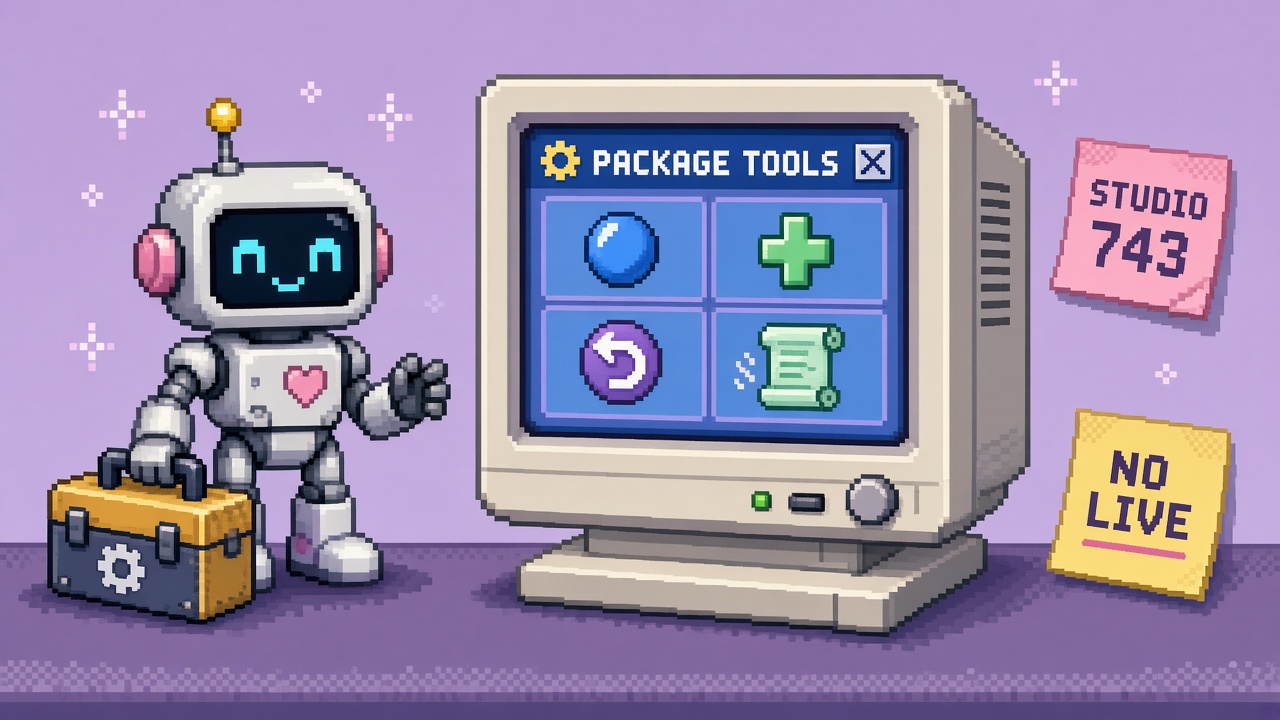
Roblox package override tools are the free Studio surfaces you use on a place copy after October 15, 2026. They are not a live Team Create pipeline.
Roblox opened Package Overrides as a Studio Beta. A local edit can stay attached while the source package still updates. You need Studio 743 or later, File → Beta Features → Package Overrides, and a restart. Explorer shows a blue dot for a change and a green plus for an add. Properties can revert one overridden field. The package menu can revert an instance or the whole package. Version history now lists every version and its notes, not only the latest 50. The Creator Hub is still where a published version actually lives.
This list names those surfaces and the limit on each one. It is not the what-changed explainer, which is the rule map. It is not the live-workflow Stop, which refuses LIVE_FLOW. It is not the lab worksheet, which is the fill-in sheet. It is not an early-testers toolkit or a Quick Words toolkit. Those own other jobs. This URL owns twelve free package override tools and a four-tool minimum.
Why this matters now
The announcement is a feature post. People then enable the beta on the live place because they cannot name a smaller kit. The dots, the revert icon, and the history panel are already in Studio. A numbered list is how a small team uses them without publishing.
Direct answer: Use the four-tool minimum (version, checkbox, place copy, revert icon) before you claim a lab. The other eight tools make the note specific. None of them authorizes a shared publish.
Who this kit is for
| Audience | Use the list to… |
|---|---|
| Beginners | Find the checkbox, the dot, and revert without a plugin |
| Developers | Separate the copy, the status icon, and the Hub version |
| Creators | Paste a four-tool minimum instead of “we have overrides” |
| Companies | Show the live place was not the tool surface |
Time: 25 minutes for the minimum. 60–90 minutes with history and a revert.
Honest limit: If this page and the October 15 post disagree, the post wins.
Non-repetition
| URL | Job |
|---|---|
| What-changed | Read the rules |
| Live-workflow Stop | Refuse LIVE_FLOW |
| Lab worksheet | Fill the sheet |
| Roblox guide | Platform hub |
| This URL | Twelve free override tools |
Pair a paste with 25 free game development Discord servers.
Criteria
A tool is on this list only if all four are true:
- Free inside Studio or on an official Roblox page.
- Specific to an override decision (version, mark, revert, history, publish check).
- Usable on a place copy without inviting the live Team Create group.
- Honest about what it cannot do. No tool here certifies nested packages or a mixed session.
Paid package managers and “bulk revert” plugins are out. The announcement does not give you a bulk API. Scripting a thousand tree colors is not a tool on this list.
Four-tool minimum
| # | Tool | Pass when… |
|---|---|---|
| 1 | Studio version | String is 743 or later |
| 2 | Beta Features checkbox | Enabled, then Studio restarted |
| 3 | Place copy | Name is not the live Team Create place |
| 6 | Properties revert icon | One overridden property shows the icon, and you can revert it |
Tools 4 and 5 (the dots) are how you see the edit. They sit between 3 and 6 in a real evening. The minimum is still “version, checkbox, copy, revert,” because a dot you cannot undo is an incomplete kit.
The twelve tools
1. Studio version string
What it is. The version in the Studio title or About dialog.
Use it for. The floor in the announcement: 743 or later. A missing Package Overrides checkbox almost always means you are below that floor.
Steps. Read the string. Write it down. Update Studio if it is older. Do not join someone else’s enabled live place to skip the update.
Honest limit. “Latest” is not a version. Fail sign: the checkbox is absent and you keep clicking Beta Features on the shipping place.
2. File → Beta Features → Package Overrides
What it is. The opt-in checkbox. The beta does nothing to existing packages until it is on.
Use it for. Turning tracking on for this Studio install. It is not a per-place toggle. After you enable it, a restart is required. Any place you then open can record overrides.
Steps. Enable it only when tool 3 already exists. Restart. Open the copy, not the live place.
Honest limit. Turning it off later stops tracking, and overrides already recorded may be lost. Fail sign: you cycle the checkbox on the live place to “undo” an edit.
3. Place copy
What it is. A save-as, a downloaded file, or an unpublished duplicate. No extra app.
Use it for. A surface you can discard. The worksheet requires the copy name to differ from the live place.
Steps. Name it so a half-asleep open cannot hit production. Do not invite the Team Create group on night one. Solo is the pass.
Honest limit. A copy that you publish back to the shared package is not disposable. Fail sign: the recent-places list opens the live game after the restart.
4. Explorer blue dot
What it is. The mark on an instance you changed: a property, an attribute, or its parent. Parents of a marked instance get a dot too, including when the change is inside a nested package.
Use it for. Finding the edit without a warning dialog. Those dialogs are gone. The dot is the replacement signal.
Steps. Change one property on a flat package. Confirm the dot on that instance and notice whether the parent lit up. Write both.
Honest limit. A dot is not a merge report. Fail sign: you changed five things and cannot say which dot belongs to which property.
5. Explorer green plus
What it is. The mark on an instance you added inside the package.
Use it for. Telling an add from a property edit. Night one’s minimum does not require an add. You still need to know the mark so you do not call a plus a dot in the note.
Steps. Only if the property test already reverted cleanly, add one trivial part on the copy, confirm the plus, then revert that add before you stop. Skip this if you are out of time. Section notes can say “not exercised.”
Honest limit. Adds inside nested packages are in the known-issue zone. Fail sign: you add parts in the live place because the plus is “obviously local.”
6. Properties revert icon
What it is. The icon beside an overridden property or attribute in the Properties window.
Use it for. Putting one field back without breaking the package link. Linked fields move together. The announcement’s example is Color and BrickColor.
Steps. Select the dotted instance. Find the icon. Revert. Confirm the value and that the dot cleared.
Honest limit. The icon reverts the override. It does not revert a publish you already shipped. Fail sign: the icon is missing because you are looking at an instance you did not change.
7. Package → Revert Overrides on Instance
What it is. The right-click command on one instance.
Use it for. Clearing every override on that instance when the Properties icon is hard to see. Roblox already heard that the new marks can be thin on some displays. The menu is the backup.
Steps. Right-click the instance, not the whole model, unless you mean the whole model. Choose Package → Revert Overrides on Instance. Check the property value.
Honest limit. This is still not a bulk tool for a thousand copies. Fail sign: you run it on the live place because one tree looked wrong.
8. Package → Revert Overrides
What it is. The right-click command on the package, which clears overrides for that package rather than one instance.
Use it for. A package you touched in more than one place during a sloppy lab, on the copy only.
Steps. Right-click the package root. Choose Package → Revert Overrides. Walk the blue dots. They should be gone. Ctrl+Z (Command+Z on Mac) undoes a revert if you cleared too much.
Honest limit. Undo is local to the session. It is not a version rollback on the Hub. Fail sign: you wanted one property back and cleared the package, then published to “save the clean state.”
9. Package status icon and tooltip
What it is. The icon and tooltip that say whether the package is on the latest version, pinned, or pinned with updates available. A blue dot still means overrides exist, separate from that status.
Use it for. Not confusing “we have a local color” with “we are behind on the mesh.”
Steps. Hover the package after the dot test. Write the tooltip words next to the dot result. If you cannot read the icon, use the tooltip text, not a guess.
Honest limit. Status does not test nested Auto-Update. Nested packages still cannot use Auto-Update. You can change a nested version yourself. Fail sign: you turn Auto-Update on for the live tree because the tooltip looked idle.
10. Full version history
What it is. The package history that now lists every version and its notes. The old list stopped around the latest 50, and older notes disappeared.
Use it for. Seeing whether this lab created a version. Night one should add zero rows.
Steps. Open history before you edit. Note the top version id or timestamp. Open it again before you close Studio. The top row should match.
Honest limit. History inside Studio is not a substitute for who is allowed to publish. Fail sign: a new row appeared and you call it “just a local override.” Publish writes overrides into the new version. That row is shared once people update to it.
11. Creator Hub creations page
What it is. The Creator Hub view of the experience and its assets.
Use it for. A second confirmation that the lab did not publish. Studio history can be glanced past. The Hub is the place collaborators will actually receive.
Steps. After the revert, open the Hub. Confirm the package’s latest version time is from before the lab. If it moved, latch HOLD and tell the Stop owner. Do not “fix” it with another publish.
Honest limit. The Hub does not toggle the Studio beta. Fail sign: you look for a Package Overrides switch on the website and, finding none, assume the beta is already global.
12. The announcement’s known-issue list
What it is. Two paragraphs in the October 15 post, used as a filter before you add seats or nested kits.
Use it for. Deciding the next lab, not decorating this one.
| Issue | Tool response |
|---|---|
| Team Create edits from a Studio without the beta are not overrides | Do not invite a mixed session. All off on the live place, or all on 743 on a copy |
| A nested override can be treated as a local edit when the parent updates | Do not make a nested kit tool 4’s first target |
| Beta off can drop recorded overrides | Do not use the checkbox as undo |
| Same property: your value wins. Deleted instance: override drops | Read it on the what-changed page before you pull a source update |
Honest limit. The list is not a fix. Roblox said APIs and nested behavior come next, before this leaves beta. Fail sign: you quote the car example and skip this tool.
Decision latch
| Decision | Meaning |
|---|---|
| LAB_KIT | Four-tool minimum done on a copy. Nothing published. |
| PAIR | LAB_KIT plus the worksheet filled the same evening. |
| HOLD | A tool was aimed at the live place, or history shows a new version. |
| LIVE_FLOW | The kit’s output is the shipping Team Create process. Refuse. |
Monday ritual (25 minutes)
- Read the Studio floor in the announcement.
- Write your version. Update if you are under 743.
- Make the place copy.
- Enable the checkbox. Restart. Open the copy.
- Change one property. Revert it with the Properties icon.
- Stop. Do not publish. Do not open the live place in that same Studio session if you can avoid it. If you must, remember the checkbox is already on.
90-minute full kit
| Minutes | Tools |
|---|---|
| 0–15 | 12 and 1 (known issues + version) |
| 15–30 | 3 and 2 (copy, then checkbox, restart) |
| 30–50 | 4 and 6 (dot + Properties revert) |
| 50–65 | 7 or 8 only if the icon was unclear |
| 65–80 | 9 and 10 (tooltip + history unchanged) |
| 80–90 | 11 (Hub time check). Tool 5 only if the revert already passed. |
Failure modes
| Failure | Tool that catches it |
|---|---|
| Below Studio 743 | Tool 1 |
| Enabled, then opened the live place | Tool 3 name versus recent places |
| Cannot undo the color | Tool 6 |
| Cleared too much | Tool 8 plus Ctrl+Z |
| Thought a local color meant the mesh updated | Tool 9 |
| Published without noticing | Tools 10 and 11 |
| Mixed Team Create “so everyone sees it” | Tool 12 |
| Cycled the beta off | Tool 2’s limit, then HOLD |
Beginner path
You need a package you can point at, a Studio you can update, and a copy. You do not need nested kits.
- Finish tools 1, 2, 3, and 6.
- Use tool 4 so you know what a dot looks like on your monitor.
- Skip tool 5 if you are tired.
- Check tool 10 so history did not grow.
- Hand the blanks to the worksheet if the team wants boxes.
Developer path
After the minimum, add tools 9, 10, 11, and 12. Record:
- Version string
- Copy name
- Property reverted
- Tooltip words
- History top row before and after
- Hub timestamp
- Whether any collaborator is still under 743
Leave the live session off. Auto-Update on the copy is optional and belongs in the worksheet’s Section E, not in a live sweep.
Worked example
Studio Lantern Row wants the kit without a mesh publish.
- Tool 1: Studio 743.
- Tool 3: copy
LanternRow-Overrides-Labbefore the checkbox. - Tool 2: beta on, restart, copy opens.
- Tools 4 and 6:
Light.Colordots, revert icon restores it,BrickColorfollows. - Tool 5 skipped.
- Tools 9–11: tooltip still says the previous version state they wrote down, history top row unchanged, Hub time unchanged.
- Tool 12: contractor stays out. Nested lantern kit stays untouched.
- Decision PAIR if they also fill the worksheet. LIVE_FLOW refused.
Anti-patterns
- Installing a third-party bulk editor because revert feels slow.
- Calling this list the same kit as early-testers or Quick Words.
- Using tool 8 on the live place.
- Treating tool 11 as the beta switch.
- Writing LAB_KIT when tool 10 shows a new version.
How this list pairs with the Stop and the worksheet
| Page | You leave with… |
|---|---|
| Workflow Stop | A refusal |
| Worksheet | Filled boxes |
| This list | The free Studio tools those boxes assume |
| What-changed | The conflict rules you should not rediscover by publishing |
Company language
| Question | Answer |
|---|---|
| What did the toolkit change in production? | Nothing, if LAB_KIT is honest |
| Where is the beta? | A Studio checkbox on 743+, not a Hub toggle |
| Why these twelve? | Each one catches a specific lab failure |
| Is history enough? | Pair it with the Hub check. Publish is shared |
Discord paste
12 free Package Override tools — minimum is four:
1) Studio 743+
2) File > Beta Features > Package Overrides, then restart
3) Place copy, not the live Team Create
4) Properties revert icon on one property
Then dots, package revert, status tooltip, full history, Hub time check.
Decision: LAB_KIT or PAIR. Refuse LIVE_FLOW.
QA after you claim LAB_KIT
- Version is a number, 743 or higher.
- The copy name is not the live place.
- One property was reverted.
- History and the Hub did not gain a version during the lab.
- The beta was not toggled off to clean up.
- If any line fails, latch HOLD.
Receipt — roblox_package_override_tools_receipt_v1.json
{
  "receipt_type": "roblox_package_override_tools_receipt_v1",
  "operator": "",
  "studio_version": "",
  "copy_place": "",
  "tools_used": [],
  "four_tool_minimum_done": false,
  "property_reverted": "",
  "history_top_unchanged": true,
  "hub_version_unchanged": true,
  "beta_toggled_off": false,
  "decision": "LAB_KIT|PAIR|HOLD",
  "refused": ["LIVE_FLOW"],
  "timestamp_local": "",
  "notes": ""
}
LAB_KIT or PAIR is invalid if four_tool_minimum_done is false, history_top_unchanged is false, hub_version_unchanged is false, or beta_toggled_off is true.
Key takeaways
- These are lab tools for the 15 October 2026 Studio Beta.
- The minimum is version 743, the checkbox, a place copy, and the Properties revert icon.
- Blue dot means a change. Green plus means an add.
- Instance revert and package revert are the menu backups. Ctrl+Z undoes a revert in-session.
- Status tooltips and full history tell you whether you published.
- The Creator Hub is the second publish check.
- The announcement’s known issues block mixed sessions and nested-first tests.
- Do not toggle the beta off as an undo.
- Latch LAB_KIT, PAIR, or HOLD. Refuse LIVE_FLOW.
- Primary keyword: roblox package override tools.
FAQ
What are the best free Roblox package override tools for a first lab?
Start with four: the Studio version (743+), File → Beta Features → Package Overrides plus a restart, a place copy, and the Properties revert icon on one property. The announcement is the source for those steps.
Do I need all twelve?
No. Add the dots, the package revert menu, the status tooltip, history, and the Creator Hub check when you want proof you did not publish. Use the known-issue list before you add people or nested kits.
Can this list replace the worksheet?
No. This page names the tools. The worksheet is where you mark the dot and the revert. PAIR means you did both.
Will these tools let us update packages on the live Team Create place?
No. That is LIVE_FLOW. The workflow Stop is the refusal. Tool 3 exists so the place you open is a copy.
Where do “yours wins” and deleted instances fit?
On the what-changed page. They are rules, not extra downloads.
What primary keyword does this page target?
roblox package override tools.
Related reading
- Roblox Package Overrides First Indie Studio Beta Lab Worksheet 2026
- Stop Treating Roblox Package Overrides Beta as Your Live Workflow - 2026
- What Roblox Package Overrides Beta Changed for Indies - 2026
- Roblox Guide
- 25 Free Game Development Discord Servers
Primary sources: Studio Beta: Package Overrides and Usability Improvements · Roblox Creator Hub.
Conclusion
Package Overrides did not ship as a plugin pack. The useful kit is already in Studio: a version check, a checkbox, a copy, a dot, and a revert. Use history and the Creator Hub to prove you did not publish. Leave the live Team Create place alone.