

What Roblox SLIM Debug Tints Changed for Streaming Labs - 2026
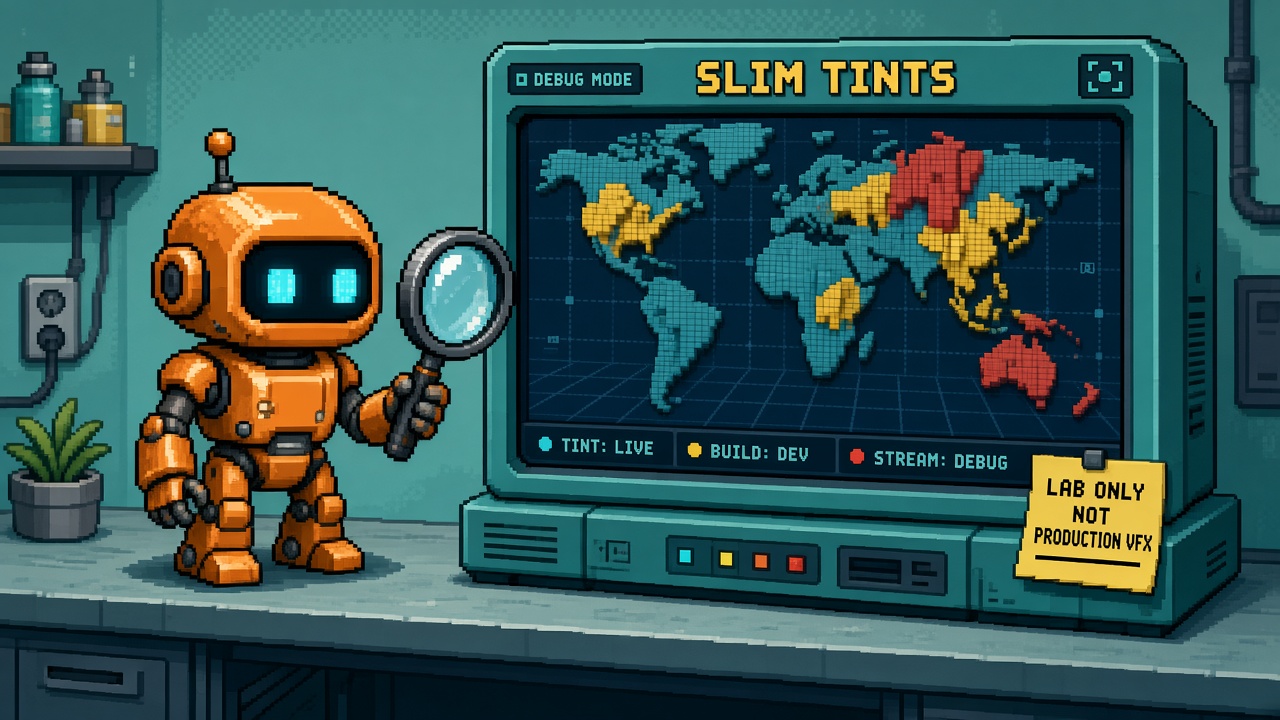
If you searched roblox slim debug tints after the October 9 announcement, you do not need another “pretty colored world” celebration post. You need a map of what actually shipped: which overlay lives in Studio Beta versus Roblox Player, which tint mode answers which streaming question, and why mistaking debug colors for production VFX will wreck your art review.
Roblox announced SLIM debug tints in Studio and Roblox Player (October 9, 2026). The weekly recap for October 5–9 repeats the same pitch: color models by streaming state, level of detail, and transcoder status so you can inspect worlds before you publish. Official how-to and color semantics live in the Creator docs SLIM debugging section (DebugVisualizations → SlimTintMode; Studio Visualization Options for the Studio Beta path).
This page is the what-changed read for streaming labs. It is not a numbered pass/fail checks kit — use 12 Free SLIM Debug Tint Checks for that. It is not a collision-summaries FX toolkit. It is not UIShadow polish. Those own other October surfaces. This URL owns the SLIM Debug Tints capability map.
Why this matters now
Until this drop, verifying whether SLIM was active, whether models had finished cloud transcoding, or which LoD the engine was actually drawing meant guesswork, Output scrolling, and “ship and hope.” Indies with StreamingEnabled worlds and Model.LevelOfDetail = SLIM still published into fog: distant props looked fine in Studio Edit, then yellow/teal chaos only showed up after a Player join with Edit permissions — or never, if nobody opened DebugVisualizations.
Direct answer: SLIM Debug Tints are lab overlays, not a new material system. Turn them on to diagnose streaming and SLIM readiness. Turn them off before you screenshot for store pages, partner decks, or Discord “look at our new biome palette.” The colors are lies for players — useful lies for engineers.
Who this read is for
| Audience | Use it to… |
|---|---|
| Beginners | Enable Studio Beta once and name the three tint modes |
| Developers | Know Edit vs Play vs Player availability + color legends |
| Creators | Paste a Discord brief: LAB ONLY, not production VFX |
| Companies | Diligence — debug overlay ≠ shipped look; Edit-perm gate on Player |
Time: 20 minutes to read. First lab smoke: 45–90 minutes on a streaming-enabled copy place.
Honest limit: DevForum announcement + create.roblox.com SLIM docs are authorities. If this page drifts, official sources win. Roblox may change beta packaging or color mappings — re-read before a partner demo.
Non-repetition
| URL | Job |
|---|---|
| 12 Free SLIM Debug Tint Checks | Pass/fail lab kit before heatmap “tuning” |
| 12 Free Collision Summaries tools | Same-week physics FX surface — different job |
| Stop treating Studio terrain perf as client-ready | Studio look ≠ client readiness instinct |
| Custom Terrain Materials what-changed | Terrain materials — not SLIM tints |
| UIShadow what-changed | UI polish beta — not streaming LOD |
| UIShadow checks | Different Oct Studio kit |
| Roblox Studio guide | Platform hub |
| 25 Discords | Paste channel |
| HTTP 403 help | Proxy while fetching docs |
| Courses | Learning ladder |
| This URL | What SLIM Debug Tints changed for streaming labs |
The one-paragraph version
SLIM (Scalable Lightweight Interactive Models) already existed for streaming worlds. What changed on October 9 is visibility into SLIM: three debug tint modes that color models by data-model / streaming state, transcoder status, and level of detail. In Roblox Player (released), open the Developer Console (F9 / /console) → DebugVisualizations → SlimTintMode — you need Edit permissions. In Studio (Studio Beta), enable File → Beta Features → SLIM Debug Tints, then pick a mode from the Visualization Modes panel (top-right of the viewport). Edit mode focuses on transcoding status; Play mode unlocks the full set. Creator docs document the same SlimTintMode / Visualization Options path under SLIM → Debugging. Treat every tint as a temporary lab overlay. A community engine-bug thread also reports tints persisting across experiences after restart even without Edit permissions — reset / turn off consciously.
What existed before vs what shipped
| Before Oct 9 debug tints | After SLIM Debug Tints |
|---|---|
| Guess whether SLIM LoDs were drawing | Data model state tint shows traditional vs SLIM rendering + stream-in |
| Wait-and-hope for cloud transcoding | Transcoding status tint (Studio) shows Unknown / Succeeded / Transcoding / Failed |
| “Looks blurry, maybe LoD?” | Level of Detail tint heatmap (blue coarse → red fine) |
| Studio Edit looked “normal” while Player hid the truth | Explicit Studio Beta + Player DebugVisualizations paths |
| No shared color language for streaming reviews | Documented color legends teams can paste into Discord |
SLIM itself did not invent itself on October 9. The debug surface did. Your StreamingEnabled + LevelOfDetail = SLIM setup is still the prerequisite — tints only light up meaningful colors when SLIM is in play.
Prerequisites (do not skip)
- Instance streaming on —
Workspace.StreamingEnabled = true. Without streaming, SLIM-eligible models fall back; tints will not teach you what you think they teach. - Models marked SLIM — set
Model.LevelOfDetailtoSLIMon the static props you care about. Humanoid-containing models are excluded from static model SLIM (use SLIM avatars path separately). - Published / Team Create realities — Creator troubleshooting still says publish + Team Create matter for SLIM generation; first-publish transcoding can take minutes.
- Edit permissions for Player overlays — DebugVisualizations → SlimTintMode is gated for security. Testers without Edit will not “see the pretty colors” and that is intentional.
- Copy place for first Studio Beta evening — same instinct as other Studio Betas: do not thrash the only production place while learning Visualization Modes.
Official SLIM limits (static models, no runtime mutation / animation on static SLIM, Humanoid exclusion, platform fallbacks) still apply — see SLIM docs and instance streaming.
Getting started (beginner path)
Studio (Studio Beta)
- Open File → Beta Features.
- Enable SLIM Debug Tints.
- Restart Studio if prompted.
- Open your streaming-enabled lab place.
- Open Visualization Modes (top-right of the viewport).
- Select a SLIM Tint Mode.
- In Edit, start with Transcoding status — confirm models go teal (Succeeded) before you celebrate.
- Enter Play and cycle Data model state and Level of Detail.
- Deselect objects — selection highlights override tints.
- Turn the overlay off before any marketing capture.
Roblox Player (released)
- Join an experience you can Edit.
- Open Developer Console (F9,
/console, or settings). - Open DebugVisualizations → SlimTintMode.
- Pick Data model state or Level of Detail (Player path for those views).
- Walk streaming boundaries — yellow/teal should change as models stream.
- Set SlimTintMode back to None before you leave the session.
Common beginner mistakes
- Enabling the Studio Beta but never opening Visualization Modes.
- Expecting Player overlays without Edit permissions.
- Leaving tints on and shipping a trailer that looks like a heat map.
- Selecting a model and thinking the tint “broke” (selection highlight wins).
- Blaming SLIM when StreamingEnabled is still false.
Capability 1 — Data model state tint
Job: Answer “is this model drawing with lightweight SLIM, and are the full instances on the client?”
Per the announcement color language:
| Appearance | Meaning |
|---|---|
| No tint | Full instances streamed in; traditional part-by-part rendering |
| Teal | Full instances streamed in; lightweight SLIM rendering |
| Yellow | Instances not streamed in on the client; lightweight SLIM still rendering |
Lab use: Fly to streaming edges. Yellow on distant SLIM props is often healthy — the point of SLIM is keeping a lightweight stand-in when the full DataModel instances are out. Untinted near-field models that you expected to be SLIM may mean LevelOfDetail is not set, or the engine fell back.
Creator Discord line: “Yellow ≠ broken art. Yellow = SLIM stand-in while instances are streamed out.”
Dev verification: Screenshot the same vista with SlimTintMode = None vs DataModelState. If colors never appear, prerequisites failed (streaming, SLIM flag, permissions, or mode not selected).
Capability 2 — Transcoding status tint (Studio)
Job: Answer “did cloud transcoding finish so lightweight SLIM representations exist for published play?”
| Color | Status | Meaning |
|---|---|---|
| Orange | Unknown | Still retrieving status |
| Teal | Succeeded | Transcoded; available for published experiences |
| Sky blue | Transcoding | In progress — not ready yet |
| Red | Failed | Check Output — moderation, permissions, or other failures |
Edit-mode focus: Creator docs note that while editing, Studio’s Visualization Options emphasize TranscoderStatus; while playing, all tint modes are available. Plan your evening: Edit for “is transcoding healthy?”, Play for streaming/LoD behavior.
Lab use: After first publish of SLIM-marked models, wait (docs often cite on the order of 1–2 minutes for first-pass transcoding), rejoin, and confirm teal Succeeded. Red is a stop-the-line signal — do not “tune LOD” until Output explains the fail.
Company diligence: A red forest on TranscoderStatus is a release-blocker for SLIM-dependent vistas, not a “shader mood.”
Capability 3 — Level of Detail (LoD) tint
Job: Answer “which lightweight SLIM LoD representation is drawing right now?”
Announcement / docs heatmap language:
| Color | Meaning |
|---|---|
| Blue | Lowest detail — fewest triangles |
| … warm mid tones … | Intermediate ranks |
| Red | Highest detail representation in use |
API reference discussions of SlimTintMode.LevelOfDetail describe a fixed rank→color map (with the nuance that a mesh’s own highest available LoD often reads as the warmest/red end). Prefer the live Creator docs + announcement screenshots over memorizing hex values from third-party blogs.
Lab use: Pull the camera out. Expect cooler colors at distance and warmer colors up close when SLIM LoDs are working. If everything is stuck on one color while you zoom, you are not exercising streaming radius / LoD swap — tighten StreamingTargetRadius temporarily for a harsh lab (see streaming techniques guidance), then restore production values.
Honest limit: LoD tint is a debug heatmap, not a grading LUT for environment art.
Studio vs Player availability matrix
| Surface | How to enable | Modes to expect | Gate |
|---|---|---|---|
| Studio Edit | Beta Features → SLIM Debug Tints → Visualization Modes | Transcoding status primary | Studio Beta flag |
| Studio Play | Same beta + Visualization Modes / play path | All three modes | Studio Beta flag |
| Roblox Player | F9 → DebugVisualizations → SlimTintMode | Data model state + LoD (released path) | Edit permissions |
Memorize the matrix. Half of Discord confusion is “I enabled the beta” (Studio) vs “I opened F9 on a live place I cannot Edit” (Player).
Persistence / cross-experience caveat
A DevForum engine-bug report — SLIM Debug Tints persist across experiences without Edit permissions after restarting Roblox — describes overlays remaining active when switching experiences after a restart, including destinations without Edit permissions. Treat that as a known sharp edge until Roblox marks it fixed:
- Explicitly set SlimTintMode back to None when you finish a lab.
- If colors “follow you” into another place, restart the client and re-check.
- Do not assume “I see tints, therefore I have Edit” — the bug report exists because that assumption fails.
- Log the bug URL in your lab README so QA does not file duplicate folklore.
This is exactly why the sticky note on the hero says LAB ONLY.
Beginner evening lab (ninety minutes)
| Block | Minutes | Action | Pass |
|---|---|---|---|
| A | 0–15 | Read announcement + SLIM Debugging docs | Ticket links both |
| B | 15–30 | Enable Studio Beta; open Visualization Modes | Mode picker visible |
| C | 30–50 | Edit → Transcoding status on SLIM models | Teal Succeeded (or documented Red) |
| D | 50–75 | Play → Data model state + LoD while walking | Colors change with distance/stream |
| E | 75–90 | Turn overlays off; paste Discord LAB ONLY brief | No tinted marketing shots |
Beginner done: You can explain teal vs yellow without calling yellow a bug, and you know Player needs Edit permissions.
Developer depth — streaming lab receipt
ROBLOX_SLIM_DEBUG_TINTS_WHAT_CHANGED_v1
date:
owner:
announcement_linked: yes/no
slim_docs_linked: yes/no
streaming_enabled: yes/no
sample_models_lod_slim: yes/no
studio_beta_enabled: yes/no
transcoder_status_edit: Unknown/Succeeded/Transcoding/Failed/notes
data_model_state_play: observed teal/yellow/untinted notes
lod_tint_play: blue→red behavior notes
player_f9_slimtintmode: yes/no/NA
edit_permissions_confirmed: yes/no
overlays_disabled_after_lab: yes/no
persistence_bug_acked: yes/no
signer:
Pair with existing streaming debug (not a replacement)
Instance streaming docs still describe the Shift+F3 network/streaming overlay panels (cycle with Shift+1). SLIM Debug Tints answer model SLIM representation questions; the streaming region overlay answers radius / loaded region questions. Use both on hard bugs. Do not delete one ritual because the other is prettier.
Failure triage ladder
| Symptom | Check first | Then |
|---|---|---|
| No colors ever | Mode selected? Beta on? StreamingEnabled? | LevelOfDetail=SLIM on models |
| Player menu missing | Edit permissions | Join as editor / Team Create role |
| All orange forever | Wait for status retrieve / republish | Output for transcoder errors |
| Red forest | Output moderation/permissions | Split models; fix CSG / Humanoid inclusion |
| Tints in wrong experience | Persistence bug path | Set None; restart client |
| “Art looks radioactive” | Overlay still on | Disable before captures |
Creator Discord brief (paste)
SLIM Debug Tints (Oct 9) — lab overlay, not production VFX.
Studio: Beta Features → SLIM Debug Tints → Visualization Modes
Player: F9 → DebugVisualizations → SlimTintMode (needs Edit)
Modes: Data model state · Transcoding status · Level of Detail
Yellow often = SLIM stand-in while instances streamed out (not “broken”)
Turn overlays OFF before trailers / store shots
Monday standup script
“Streaming lab uses SLIM Debug Tints on the copy place only. Production captures stay tint-off. TranscoderStatus must be Succeeded on hero props before we call the vista publish-ready.”
Excuse ladder
| Excuse | Why it fails | Fix |
|---|---|---|
| “Tinted biome is our new art direction.” | Debug heatmap | Disable overlay |
| “Player QA can’t see SlimTintMode.” | Edit permission gate | Grant Edit or run Studio Play |
| “Yellow means SLIM is broken.” | Yellow is valid stand-in state | Re-read Data model legend |
| “We don’t need publish; Edit is enough.” | Transcoding is publish/cloud tied | Follow Succeeded path |
| “Collision summaries cover this.” | Physics FX ≠ SLIM LoD | Different toolkit |
| “Terrain Stop already said Studio ≠ client.” | Related instinct, different surface | Keep both bookmarks |
Company / diligence four-liner
- Fact: Oct 9 shipped SLIM Debug Tints — Studio Beta Visualization Modes + Player SlimTintMode (Edit-gated).
- Control: Lab receipt + overlays off for any external capture.
- Limit: Persistence bug report; Edit-mode vs Play-mode mode availability; SLIM prerequisites still required.
- Evidence: Links to DevForum announcement, weekly recap, and SLIM debugging docs.
Partner FAQ card
| Question | Honest answer |
|---|---|
| Did Roblox ship a new colorful shader for players? | No — debug visualization for creators. |
| Can we use this in a trailer? | Not with tints on — disable first. |
| Why can’t contractors see it in Player? | Need Edit permissions for DebugVisualizations. |
| What’s the publish gate for SLIM props? | Transcoding Succeeded (teal) before you bet the vista. |
What to lock this week
- Bookmark the DevForum announcement + SLIM Debugging docs.
- Enable Studio Beta on a lab place.
- Confirm TranscoderStatus Succeeded on key SLIM models.
- Walk Data model state + LoD in Play.
- Verify Player path once with an Edit-capable account.
- Document the persistence caveat in the lab README.
- Ban tinted screenshots from the marketing channel.
- Keep Shift+F3 streaming overlay in the same lab kit.
- Run the companion twelve free checks before world-tuning folklore.
- Re-read docs if Roblox updates SlimTintMode enums.
Producer one-pager
Title: SLIM Debug Tints — streaming lab visibility
Can: Diagnose SLIM stream/transcode/LoD on lab + Edit-capable Player.
Cannot: Ship tint colors as art; skip Edit perms; ignore Red transcoder fails.
Owner: Technical art / streaming lead.
Revisit: When persistence bug closes + any SlimTintMode doc change.
Opinion spine (quotable)
Stop treating a debug heatmap as a biome. SLIM Debug Tints exist so you can see streaming truth before players feel pop-in. The moment those colors leave the lab and enter a store capsule, you have confused a verification tool with a visual identity.
Key takeaways
- Oct 9 shipped SLIM Debug Tints for Studio and Player.
- Three modes: data model state, transcoding status, LoD.
- Studio path is a Beta Feature + Visualization Modes.
- Player path is F9 → SlimTintMode with Edit permissions.
- Edit emphasizes transcoding; Play unlocks the full set.
- Yellow often means healthy SLIM stand-in, not broken art.
- Red transcoder status is a stop-the-line.
- Overlays are LAB ONLY — never marketing.
- Ack the persistence bug thread until fixed.
- Prerequisites: StreamingEnabled + LevelOfDetail=SLIM.
- Pair with Shift+F3 streaming overlays for radius truth.
- Official docs beat Discord color folklore.
FAQ
Are SLIM Debug Tints a Studio Beta forever?
Studio enablement is labeled Studio Beta in the announcement. Player SlimTintMode is described as released for Edit-capable sessions. Re-check the DevForum post if packaging changes.
Do players without Edit see the colors?
Not via the supported DebugVisualizations menu — Edit permissions are required. If colors appear without Edit after a restart, treat it as the persistence bug path, not a feature.
Is this the same as the streaming radius overlay?
No. Shift+F3 streaming panels show region/radius state. SlimTintMode colors SLIM model representation/status. Use both.
Can I leave TranscoderStatus on while building?
You can for diagnosis. Turn it off for art reviews — selection highlights and teammate selections also fight the tint read in Team Create.
Where do I read official color mappings?
Start with the announcement and the SLIM Debugging section; enum pages for SlimTintMode / transcoder status track engine naming.
How is this different from UIShadow checks?
UIShadow is UI polish. SLIM tints are world streaming / LoD diagnostics. Cross-link for October Studio literacy; do not merge keywords.
Related reading
- SLIM debug tints in Studio and Roblox Player (DevForum) (primary)
- Weekly Recap: October 5–9, 2026
- SLIM Creator docs — Debugging
- Instance streaming
- Persistence bug thread
- 12 Free Roblox SLIM Debug Tint Checks Before You Tune Worlds
- Stop treating Studio terrain perf as client-ready
- 12 Free Collision Summaries tools
- UIShadow what-changed
- Roblox Studio guide
- 25 free Discord servers
- Courses
Streaming labs needed a shared color language. SLIM Debug Tints finally give one — as long as you keep the heatmap in the lab and the real biome in the build.