

What Roblox Quality Mode Textures Changed in Studio - 2026
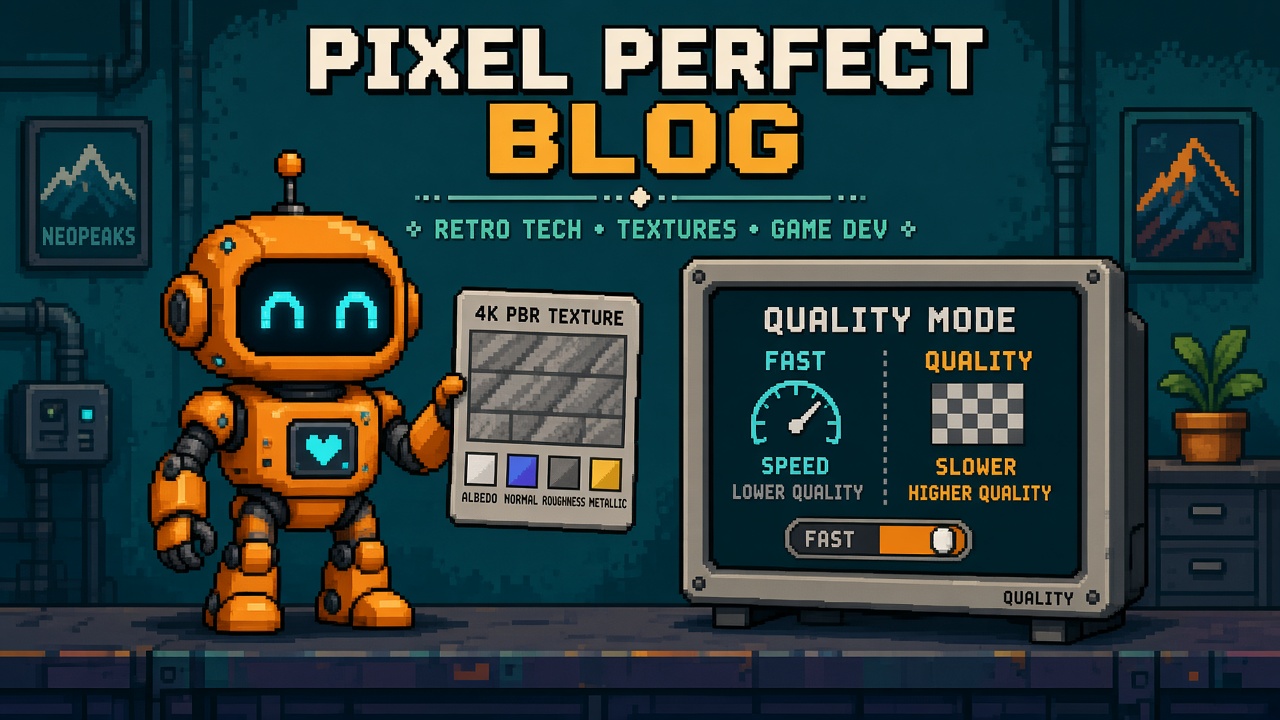
If you searched roblox quality mode after the mid-October Studio beta, you do not need another “AI textures are here” thread. You need a map of what Fast vs Quality actually emit, how long each run takes, what prompts break, and what is still ignored (normal maps) before you burn an evening re-prompting a whole prop catalog.
Roblox announced Quality Mode for Texture Generation as a beta (post dated 16 October 2026). The Weekly Recap: October 12–18, 2026 repeats the headline: Quality makes 4K PBR with color, roughness, and metalness; entry points are Model → Texture, right-click Generate → Texture, or Assistant /generate_texture with the mesh selected. Creator Hub docs for the tool live at Texture Generator (enable via File → Beta Features → Texture Generator).
This page is the what-changed read. It is not an Meshy remesh Stop, not the UIShadow capability map, and not the Package Overrides what-changed. Those own UI shadows and package edits. This URL owns the Texture Generation Quality mode map.
Why this matters now
Studios already treat Fast color passes as “good enough for blockout,” then panic-retexture everything when a trailer week arrives. Quality mode changes the ceiling inside Studio: full PBR at 4K in about two minutes per run, versus Fast’s ~30 second 1K color-only pass. The trap is spending Quality minutes on every draft prompt, or assuming Fast results survive a Quality re-run unchanged.
Direct answer: Iterate prompts on Fast. Promote winners to Quality. Expect detail drift when you swap modes. Do not ask for glass alpha or lighting that texture cannot do. Do not expect normal-map detail to drive generation yet — Roblox says those details are currently ignored, with support coming later.
Who this read is for
| Audience | Use it to… |
|---|---|
| Beginners | Know Fast vs Quality in one table before clicking Generate |
| Developers | Budget time, maps, and memory for 4K PBR sets |
| Creators | Paste a Discord lab brief: Fast loop → one Quality hero |
| Companies | Treat Texture Generator as a beta tool with known gaps |
Time: 25 minutes to read. First mesh lab: 45–90 minutes.
Honest limit: The DevForum announcement and create.roblox.com Texture Generator docs are authorities. If this page and those disagree, the official sources win. Roblox said they will update the post as Coming Soon items ship.
Non-repetition
| URL | Job |
|---|---|
| UIShadow what-changed | UI shadow Studio Beta |
| UIShadow live-publish Stop | UIShadow publish refusal |
| Package Overrides what-changed | Package edit beta |
| Stop shipping Meshy over 20MB | Mesh size / remesh |
| Roblox Studio guide | Platform hub |
| This URL | What Quality mode changed for textures |
Pair a Discord paste with 25 free game development Discord servers. If Studio networking fails under a corporate proxy while the generator spins, keep package manager HTTP 403 help for the network path — different failure, same “do not thrash the live place” instinct.
The one-paragraph version
Texture Generation in Studio gained a Quality mode beta: 4K PBR outputs with color, roughness, and metalness maps in about two minutes. Fast remains 1K color-only in about 30 seconds. Open the tool from the Model ribbon Texture button, right-click Generate → Texture, or Assistant /generate_texture. Multi-part meshes can be textured so hidden parts of animated models get coverage. Prompt with materials, color, and condition; avoid geometry, particles, lighting, camera, and transparent materials (no alpha). Quality tends to work better on higher-resolution models. Normal maps are ignored today. Coming soon (per Roblox): easier Fast→Quality re-prompt with same inputs, keep original UVs, persistent image previews, and normal-map support.
What existed before vs what Quality adds
| Before / Fast path | Quality mode beta |
|---|---|
| Color-focused, faster iteration | Full PBR set: color + roughness + metalness |
| About 1K color | About 4K maps |
| About 30 seconds | About 2 minutes |
| Good for prompt hunting | Good for hero / shippable material accuracy |
| Same entry points (ribbon / context / Assistant) | Same entry points; choose mode at generate time |
| Restyle workflow already in Studio | Higher ceiling inside the same tool family |
Fast did not disappear. Quality is the slower, richer path. Your pipeline should treat them as two stages, not two competing religions.
Getting started (beginner path)
Prerequisites: Roblox Studio with Texture Generator enabled under Beta Features, a mesh or Model you own (Toolbox assets may deny retexture permissions), and a disposable place.
- File → Beta Features → Texture Generator — enable; restart if prompted.
- Open Window → 3D Texture Generator (per Creator Hub) or use Model → Texture / right-click Generate → Texture.
- Select a MeshPart or a Model of MeshParts arranged as one sensible body.
- Set generation angle toward player-visible faces.
- Write a detailed prompt (materials, colors, wear).
- Run Fast until the look is close.
- Run Quality once on the winning prompt direction — adjust the prompt if details drift.
- If close-but-not-done, re-prompt or export to external texturing software for cleanup.
Common mistakes
- Running Quality on every failed one-liner prompt (burns minutes).
- Asking for glass / transparency (no alpha support).
- Expecting Assistant chat history to fill in the prompt — it will not.
- Texturing a scattered pile of unrelated MeshParts as one Model.
- Assuming normal-map sculpt detail will show up in the bake — ignored for now.
- Hitting “user is not authorized” on Toolbox meshes without permission, or group-upload edge cases (thread replies suggest retrying under your own account / checking asset permissions).
Fast vs Quality cheat sheet (working-dev path)
| Dimension | Fast | Quality |
|---|---|---|
| Resolution (stated) | ~1K | ~4K |
| Maps | Color only | Color + roughness + metalness |
| Time (stated) | ~30 seconds | ~2 minutes |
| Best for | Prompt search, blockout | Hero props, material accuracy |
| Detail vs Fast | Baseline | Higher detail; not identical to Fast |
| Model density | Works | Tends to work better on higher-res meshes |
| Text / labels on mesh | Weaker | Better preservation (e.g. “Fight!” strap example in the post) |
Budget math for a catalog night: Ten Fast trials ≈ five minutes of wait plus your prompt edits. One Quality finish ≈ two minutes. Fifty props × Quality-first ≈ hours of idle Studio and a memory pile of 4K sets. Fast-then-Quality on the five hero props is the sane schedule.
Entry points
| Path | When to use |
|---|---|
| Model ribbon → Texture | Mesh/Model already selected in a modeling session |
| Right-click → Generate → Texture | Quick context action in Explorer / viewport |
Assistant /generate_texture |
Chat-driven session with the mesh selected |
All three are documented on the announcement. None of them bypass Beta Features enablement or asset permissions.
Multi-part and animated models
Roblox states texture generation works for meshes with multiple parts, including hidden parts of animated or scripted models. That matters for characters and props that never show every face in a still T-pose.
Dev check: After Quality, inspect seams on parts that stay hidden in idle but appear in an animation. Fail the lab if only the camera-facing LOD looks finished.
Creator Hub caution: When generating for a Model of MeshParts, arrange them as a unified body. Do not feed an arbitrary scatter of meshes or duplicates of the same mesh in one operation.
Prompting that survives the swap
Official guidelines (paraphrased into a checklist you can paste):
| Do | Don’t |
|---|---|
| Name materials, colors, condition | Vague one-word prompts |
| Name parts (“bright red hull,” “wood edging”) | Assume the tool sees Assistant history |
| Describe wear, paint, metal finish | Ask for new geometry or particles |
| Keep everything needed inside the prompt | Ask for lighting / camera “looks” |
| Expect to adjust the prompt when moving Fast → Quality | Assume pixel-identical transfer |
| Prefer higher-res meshes for Quality | Expect glass / alpha materials |
Example prompt shape: “A bright red hull, natural wood edging, and faded white paint on the interior.” That is Roblox’s own style of specificity — copy the pattern, not only the boat.
Emphasis syntax (from Creator Hub docs): + / - / numeric emphasis on keywords can steer Fast and Quality alike. Use sparingly after you have a readable base prompt.
What Quality is good at (from Roblox’s examples)
| Example theme | What it demonstrates |
|---|---|
| Chest | Roughness + metallic maps selling material |
| Stone throne | Cracks / damage resolution |
| Boxing glove strap text | Better text / label preservation vs Fast |
Use these as acceptance themes in your lab: one metal prop, one stone/wear prop, one prop with printed text. If your catalog never needs metalness, you may stay on Fast longer — but then say that out loud so nobody “upgrades” fifty mats for no gain.
Honest limits (do not ship myths)
| Limit | What it means Monday |
|---|---|
| No alpha | No glass / transparent mats from this generator today |
| Normal maps ignored | Baked normal detail on the mesh does not drive generation yet |
| Coming soon: keep original UVs | Today you may not preserve a careful unwrap the way you want |
| Coming soon: easy Fast→Quality same inputs | Manual re-entry / re-tune is still the path |
| Coming soon: preview persistence | Treat previews as session-fragile until that lands |
| 4K memory | Community thread flagged small-prop 4K waste — budget like an adult |
| Permissions | Some Toolbox / group assets refuse retexture |
Creator Hub also notes Texture Generator is best for custom 3D assets where the texture is contextual to the asset. For repeating floors and pathways, Material Generator may fit better — do not force Quality mode onto every tiling problem.
Worked evening — one prop, two modes
Time-box: 60–90 minutes on a disposable place.
- Enable Texture Generator; restart; confirm Beta Features.
- Import or select a mid-poly prop you own (not a forbidden Toolbox mesh).
- Write three Fast prompts; keep screenshots A/B/C.
- Pick a winner; run Quality with the same intent; screenshot D.
- Note what drifted (color cast, wear pattern, text). Adjust prompt; Quality again if needed (screenshot E).
- Check roughness/metalness under a simple light — not only albedo.
- Log: Fast count, Quality count, wall-clock, whether you would ship D/E.
- Optional: export for external cleanup if “close but not finished.”
PASS = Fast loop documented + one Quality candidate + limit notes (alpha / normals). FAIL = Quality-only spam with no Fast search, or live-place experimentation on the only ship mesh.
Discord lab brief (creators)
Quality mode lab (Studio Texture Generator beta):
1) Fast (~30s, 1K color) until the prompt works
2) Quality (~2m, 4K PBR color+rough+metal) once
3) Expect detail drift — retune the prompt
4) No glass/alpha; normal maps ignored for now
Mesh: ________  Owner: ________  Place: COPY only
Memory and catalog policy (companies)
| Policy question | Sane default |
|---|---|
| Every prop Quality 4K? | No — heroes and close-ups first |
| Fast for greybox week? | Yes |
| Trailer week? | Quality on camera heroes; Fast elsewhere |
| Who approves 4K upload? | Art lead + memory budget owner |
| External cleanup allowed? | Yes when Studio output is close-but-not-done |
Thread replies already worry about 4K on tiny props versus engine downscales. Your diligence note: Quality mode raises authoring resolution; it does not delete device scaling. Still, storing and uploading giant sets for every stud-wide bolt is a process smell.
Same-week Studio context
October Studio noise also included UIShadow upgrades and Package Overrides. Do not merge checkboxes:
| Beta | Job | This page? |
|---|---|---|
| Texture Generator / Quality mode | Mesh textures | Yes |
| Upgraded UIShadows | UI shadows | what-changed |
| Package Overrides | Package edits | what-changed |
A “beta night” that flips every Feature flag on the live place is how you get three different incidents. Lab textures on a copy mesh in a copy place.
Failure modes
| Failure | Symptom | Fix |
|---|---|---|
| Quality-first thrash | Hours of 2-minute waits, no prompt learning | Fast loop first |
| Identical-expectancy | Anger that Quality ≠ Fast pixels | Retune prompt; accept drift |
| Glass prompt | Bad / empty transparency hopes | No alpha — redesign material |
| Normal ignored | Flat look vs sculpt expectation | Wait for Coming Soon or external bake |
| Unauthorized | Generator refuses | Check asset permissions / ownership |
| Scatter Model | Messy multi-mesh bake | Unified body only |
| 4K everything | Memory / upload bloat | Hero-only Quality policy |
| Live-only mesh | No rollback if bake ruins UVs | Duplicate mesh / place first |
Coming Soon — plan without depending
Roblox listed upcoming improvements. Treat them as roadmap, not today’s SOP:
- Easier re-prompt Fast → Quality with same inputs
- Keep original UVs
- Image preview persistence for re-prompts
- Normal-map support (today: ignored)
Do not write a milestone that requires “Quality respects our hand-unwrapped UVs” until the post says that item shipped.
Art style images and seeds
Creator Hub documents an optional Art Style section: upload or pick an image asset to influence style, palette, and mood, then tune Strength. Lower Strength blends subtly; higher Strength dominates. Pair that with a clear text prompt — do not expect the style image alone to encode materials, wear, and part names.
You can randomize a seed or lock a specific seed for repeatability. Locking a seed helps when comparing Fast vs Quality after a prompt tweak, but it does not guarantee identical semantics across modes. Still screenshot both; seed discipline is for debugging, not for skipping the Fast loop.
Solo vs team texture night
Solo: Cap yourself at three Fast trials and one Quality finish per prop before you take a break. Solos burn evenings on “one more Quality” without a search trail.
Small team: Art lead owns which props are Quality-eligible. Engineers own upload/memory notes. Producers own “trailer heroes only” for the week. Put the Fast→Quality Discord brief in the channel before anyone enables the beta on a shared place.
External cleanup: Roblox explicitly allows exporting for cleanup when the result is close. That is not failure — it is the documented finish path. Budget a Substance / preferred tool pass for trailer stills instead of infinite Studio re-rolls.
Verification receipt
Date:
Mesh / Model:
Owned by us?: Y/N
Fast prompts tried:
Winning Fast notes:
Quality run count:
Drift vs Fast:
Alpha asked?: Y/N (must be N)
Normal-map expected?: Y/N (ignored today)
Ship candidate?: Y/N
Signer:
Fill this even for a single prop. It stops “we generated something” from becoming “we finished the catalog.”
What this page is not
It is not a moral lecture about AI art (the DevForum thread already hosts that debate). It is not a Meshy pipeline Stop. It is not permission to Quality-bake every Toolbox mesh you do not own. It is the capability and limit map for Roblox’s Quality mode texture beta so your Monday schedule matches the post, not the hype.
Opinion spine (quotable)
Stop re-prompting your whole catalog in Quality mode because Fast felt too small. Fast is the search. Quality is the finish. Normal maps still do not vote — design around that until Roblox says otherwise.
Key takeaways
- Quality mode beta: 4K PBR with color, roughness, metalness (~2 minutes).
- Fast: 1K color-only (~30 seconds).
- Enable Texture Generator under Beta Features.
- Entry: Model → Texture, right-click Generate → Texture, or
/generate_texture. - Iterate on Fast; promote to Quality; expect detail drift.
- Multi-part meshes supported when arranged as one body.
- No alpha / glass; no geometry or particle asks.
- Prompt must be self-contained — no Assistant history.
- Normal maps currently ignored.
- Quality prefers higher-resolution models.
- Coming Soon includes UV keep, easier mode swap, preview persistence, normals.
- Primary keyword: roblox quality mode.
FAQ
What is Roblox Quality mode for textures?
A Studio Texture Generation beta mode that creates 4K PBR textures with color, roughness, and metalness maps in about two minutes. Announcement: Quality Mode for Texture Generation.
How is Fast different from Quality?
Fast is roughly 1K color-only in about 30 seconds. Quality is roughly 4K with PBR maps in about two minutes. Details can differ when you reuse a prompt across modes.
How do I enable the Texture Generator?
File → Beta Features → Texture Generator, then follow Creator Hub Texture Generator docs.
Do normal maps affect generation?
Not yet. Roblox says details from normal maps are currently ignored, with support listed under Coming Soon.
Can I generate transparent glass textures?
No. Texture generation does not currently support alpha channels. Do not prompt for transparent materials.
Should I run Quality on every prop?
No. Use Fast to search prompts; reserve Quality for heroes and materials that need roughness/metalness accuracy. Watch 4K memory on small props.
Is this the same as the UIShadow beta?
No. UIShadow is UI. Quality mode is mesh texture generation. See UIShadow what-changed for shadows.
Where to leave it
Enable Texture Generator on a copy place. Run Fast loops on a mesh you own. Promote one winner to Quality. Log drift, alpha limits, and normal-map ignore in the ticket. Keep live hero meshes duplicated before destructive restyles. For Studio orientation, use the Roblox Studio guide. For mesh size discipline on Roblox imports, keep the Meshy 20MB Stop in the same reading list when the pipeline crosses tools. Paste the Fast→Quality brief into Discord if your team only reads one message.